Archive for category Article

Adding IPv6 to your UAG Environment

It’s not a question of “if”, it’s “when”. I am talking about when you will implement IPv6 on your UAG. In this article I will show you how to do it.

In this guide I use UAG 2010 SP1 for all my screenshots. If you do not have SP1 yet I suggest you stop reading and upgrade your UAG environment to SP1 before continuing.

IPv6 and DirectAccess (DA)
Many of you might think that if you implement IPv6 in your internal environment you will no longer need UAG as DA server. Well your wrong, the main reason is that you will still need DNS64 and NAT64 to access the resources  in your network still in IPv4 address range. UAG also gives you a much better configuration interface, especially with SP1. There are more reasons, but this article is not to convince you to use UAG, I will assume the reader is already convinced.

UAG with DA is already IPv6 configured
When you configured DA on your UAG you noticed that IPv6 is a big part of DA. If you do a simple “ipconfig” you will notice several IPv6 addresses, if you then do a “route print” you will see a lot of IPv6 routing going on. But if you in the DA configuration look at the step, where you configure the external and internal addresses UAG should use, you will notice that you cannot choose an internal IPv6 address.

A basic knowledge on IPv6 addressing is required to follow me in this article, but let me just refresh your memory on some of the prefixes we use in UAG that I will talk about. 6to4: 2002::/16, Teredo: 2001::/32 and Link Local Unicast: FE80::/10

Adding IPv6 address to UAG
Although you could have UAG use some dynamic method to get it’s IPv6 address I strongly recommend you to do manual configuration of the IPv6 address. Hopefully this article will show you why. So lets take a look some things you need to configure in order to assign UAG an IPv6 address.
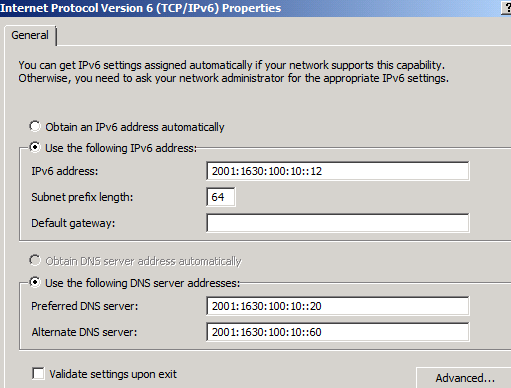
Internal IPv6 Address on UAG

Internal IPv6 Address on UAG

Even if you can use netsh to assign the IPv6 address I will show the UI way.
Open up the IPv6 properties of your “internal” adapter.
Before you assign an address you need to know the internal prefix used in your IPv6 deployment. In my example this is 2001:1630:100:10::/64 which is the /64 range I use in my server VLAN, this is from the 2001:1630:100::/48 my company was assigned  by the ISP. I assign the address 2001:1630:100:10::12 to the interface but NO default gateway. I will soon explain why.
I also assign the interface two internal DNS servers.

After adding the IPv6 address we need to take a look at the interface in more detail and understand why we did not add a default gateway.
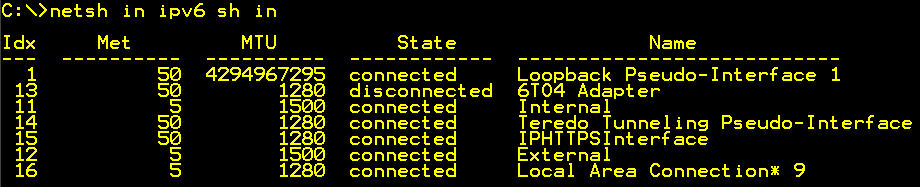
netsh in ipv6 sh in

netsh in ipv6 sh in

Start an elevated command prompt and run
“netsh int ipv6 sh int” this will list the UAGs interfaces in the IPv6 world. As you can see there are quite a few. Find the internal interface and notice the number or name.

netsh in ipv6 sh ro - with routerdiscovery enabled

netsh in ipv6 sh ro - with routerdiscovery enabled

If you run netsh int ipv6 sh ro you will see the routing information UAG has regarding IPv6 traffic. As you may notice UAG has multiple default gateways (::/0 in the IPv6 world). This is due to the fact that router discovery is automatically enabled causing us to have a very complex routing situation. We need to take control over the routing… So lets look at that.

Manage IPv6 Routing in UAG
First we need to understand that apart from DirectAccess traffic UAG cannot operate as IPv6 router. Since you during setup probably enabled IPv6 on the external interface, you might have a situation where UAG automatically picked up an external IPv6 address. UAG will however not route traffic between it’s internal and external interface, the local TMG will prevent that.
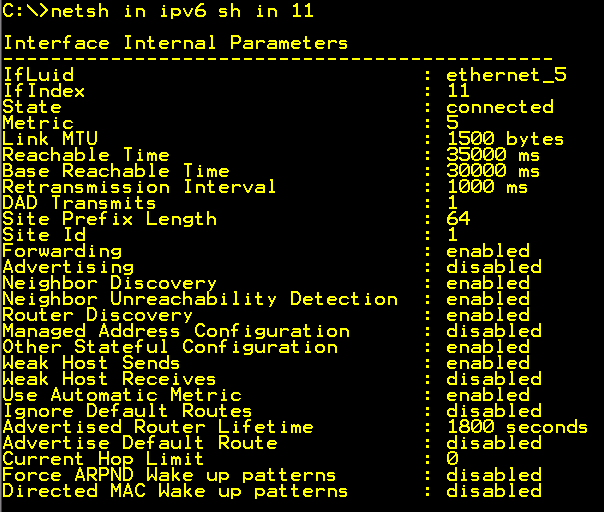
netsh in ipv6 sh in 11 - Internal interface

netsh in ipv6 sh in 11 - Internal interface

Run “netsh int ipv6 sh int 11″, where 11 is the number of the internal interface in my example. You will then get the settings for the internal interface. Some of these you need to understand if you will be able to configure your UAG correctly.

Router Discovery = enabled/disabled, tells UAG to or not to, listen to router messages on the network. If disabled we will need to configure static routing on UAG if there are other subnets that UAG needs to know about. If this is set to enabled troubleshooting routing on UAG will be a lot more tricky.  I recommend that you disable this on both the internal and external interface using the command. Netsh int ipv6 int 11 set routerdisc=dis. Where “11″ is the number of the interface. Be careful so that you do not touch any of the DA related interfaces.
IMHO I think that router discovery should be disabled on all IPv6 machines that has static IP’s. Otherwise they will end up with two, one static and one dynamic from the network advertised by the router.

Advertising=disabled tells UAG not to advertise routes on the interface. I prefer to use a dedicated IPv6 router doing the advertising of routes on the network, and UAG as we stated earlier is not an IPv6 router in that sense. UAG will “own” several prefixes in your IPv6 world and your internal IPv6 router will need to handle that.

After configuring the interface we do a new check on the routing table

netsh in ipv6 sh ro - routerdiscovery disabled

netsh in ipv6 sh ro - routerdiscovery disabled

After disabling router discovery we now only have one default gateway on the UAG. This points to it’s own 6to4 router interface gateway.
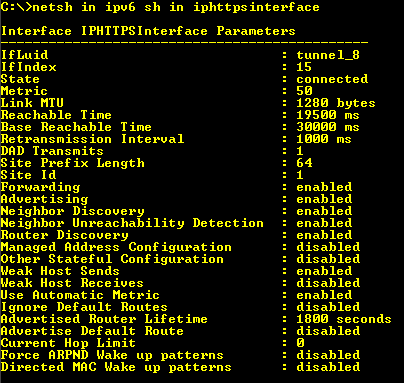
netsh in ipv6 sh in iphttpsinterface

netsh in ipv6 sh in iphttpsinterface

UAG will still advertise its routes to the DirectAccess clients, which you can verify by checking the Advertise flag on these interfaces.

Configure DA to use IPv6 internally
After fixing the IPv6 address and routing it is time to configure UAG DirectAccess to use the internal IPv6 address.
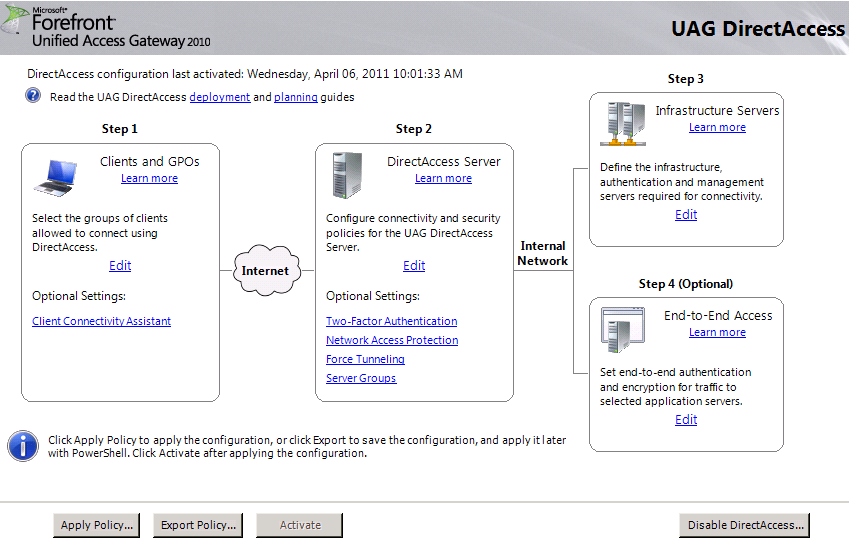
UAG DirectAccess Wizard

UAG DirectAccess Wizard

This is quite simple, just open the DirectAccess configuration and and edit step 2.
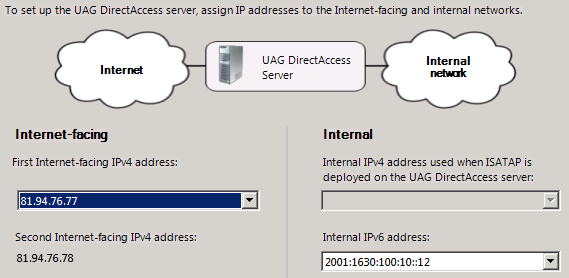
Configure IPv6 on Internal DA interface

Configure IPv6 on Internal DA interface

You will now have the choice to select your IPv6 address as Internal IPv6 address.

You will then be asked to tell UAG what prefixes it should use for different purposes.
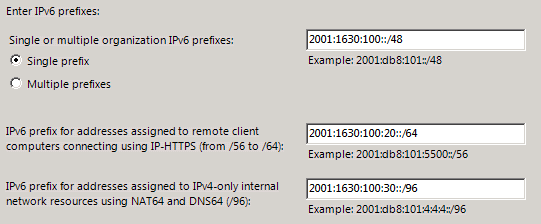
Configure DA IPv6 Prefixes

Configure DA IPv6 Prefixes

In my example the “company” prefix is 2001:1630:100::/48
I have decided to use 2001:1630:100:20::/64 for IPHTTPS Clients and 2001:1630:100:30::/64 for NAT64. UAG will not use the whole /64 prefix for NAT64, but for internal routing purposes it is easier to declare that the whole /64 prefix is “owned” by UAG.
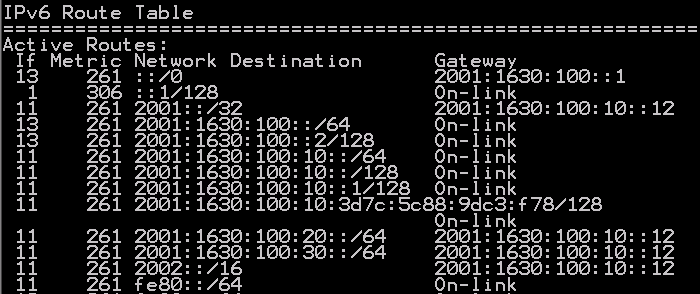
IPv6 Router - Route Table

IPv6 Router - Route Table

So on my IPv6 router I have the routes above pointing the following routes to UAG.
2001:1630:100:20::/64 – IPHTTPS
2001:1630:100:30::/64 – NAT64
2002::/16 – 6to4
2001::/32 – Teredo

When this is configured your are good to go, publish in AD and activate the configuration.

What about ISATAP?
You might have noticed that UAG tells you it will no longer work as ISATAP router when using IPv6. This is because logically you would not need ISATAP since you have IPv6 on the Internal network. However you might still in some scenarios have the need for ISATAP, and if so, I suggest you configure a separate ISATAP router, and tell this ISATAP router how to route the traffic to the IPv6 prefixes operated by UAG.

Conclusion
To summarize, it is not difficult to configure UAG in an IPv6 environment, as long as you have control over your internal IPv6 addressing and routing.

, ,

1 Comment

Migrating CLM to FIM CM

How to upgrade/migrate from CLM to FIM is totally undocumented by Microsoft. In this article I will tell you what I have learned about this process during my latest customer projects.

First of all we need to state a fact.
There is no way to upgrade from CLM to FIM, you migrate!
This official answer can be read at the FIM FAQ. “Upgrading from CLM to FIM CM is not supported because CLM Feature Pack (FP1) is supported only on 32-bit platforms and FIM CM is only supported on 64-bit platforms. You can export the CLM 2007 database and re-use it in a new FIM CM deployment

The Process
The basic steps involved in the migration are as follows, later in this article i will tell you the details involved in each step.

  • Move the CLM DB to a new FIM supported SQL
  • Upgrade the DB to FIM Schema
  • Install FIM
  • Run the configuration wizard in FIM and use existing DB and Certs
  • Migrate certificates used by CLM services, to FIM
  • Migrate configuration from CLM to FIM
  • Upgrade the CA modules to FIM version
  • Configure CA modules

One thing we need to remember is the fact that CLM and FIM CM basically are the same. And both use the same permission and configuration modell described in the picture below.

FIM CM Permissions

FIM CM Permissions

The permissions are in detail described in Configuring FIM CM Groups, Templates, and Permissions. If we re-use the Service Accounts used by CLM in our FIM CM setup we will be able to re-use the configuration as well in great parts.

Let us now look at the different steps involved and some details around them as well.

Move the CLM DB to a new FIM supported SQL
This is a task for the DB admin. Backup the CLM database using standard SQL backup methods and then restore the Database on a 64-bit SQL 2008, supported by FIM CM.
If you have FIM 2010 Update 1 (build 4.0.3531.2), SQL 2008 R2 is also supported.
I would suggest that you use the same name on the Database as you did before, to minimize the configuration changes required during the migration.

Uppgrade the DB to FIM Schema
On the FIM CM installation media in the folder \Certificate Management\x64\Upgrade you will find the scripts required to upgrade the database. You run the upgrade.bat with the “new” SQL servername as parameter. Please note that this command needs to be executed on a machine where SQL client software (osql) is installed.

Install FIM
Before you can start the installation you need to make sure the machine has the required prerequisites as described in Installation Requirements, basically the only important stuff is in the section Prepare IIS 7 for FIM CM. We also need to make sure the CLMService account has the correct rights both locally and on the DB. This is described in Configuring the FIM CM Service.

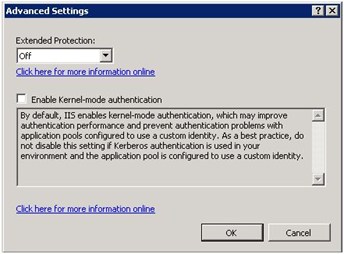
Usually FIM CM setup is split-up to at least 3 servers. FIM CM, SQL and CA. This also gives you some trouble with KCD (Kerberos Constrained Delegation). First of all you need to disable Kernel-mode authentication in IIS, to make sure that FIM CM can use it’s service accounts the way we want them to.

IIS 7 Kernel mode Authentication

IIS 7 Kernel mode Authentication

To disable Kernel-mode authentication open the IIS manager and navigate to Default Website. Select Authentication (it’s in the IIS section) in the middle pane, and select Advanced Settings in the taskbar on the right side.Uncheck Enable Kernel-mode authentication

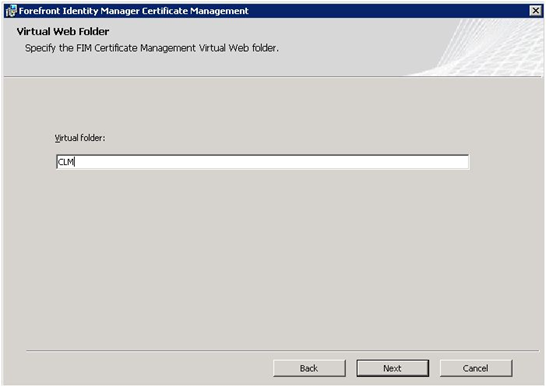
Installing FIM is no problem, the only setting during the setup you might need to think about is the name of the Virtual Folder in IIS.

FIM CM VirtualFolder

FIM CM VirtualFolder

By choosing the old name, CLM, instead of the default CertificateManagement, user favorites and systems pointing to the CLM folder will not need to be changed. For that reason you might also consider re-using the old DNS alias and point it to the new FIM CM server, if not you will also need to check your SPN’s and re-check all KCD settings.

Run the configuration wizard in FIM and use existing DB and Certs
Make sure you upgraded the DB before you run the configuration wizard. The wizard is basically the same as the one in CLM and i will only point out some places in the wizard where you need to pay extra attention.

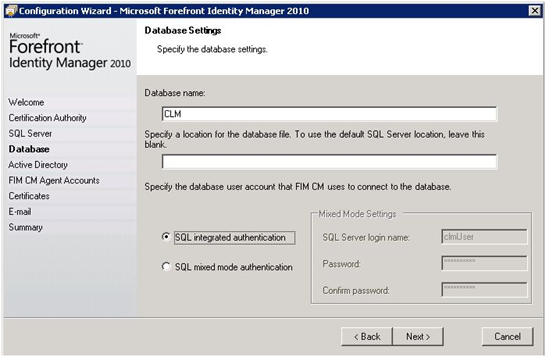
FIM Configuration Wizard DB Name

FIM Configuration Wizard DB Name

The Database name should be CLM since we are reusing the old database.

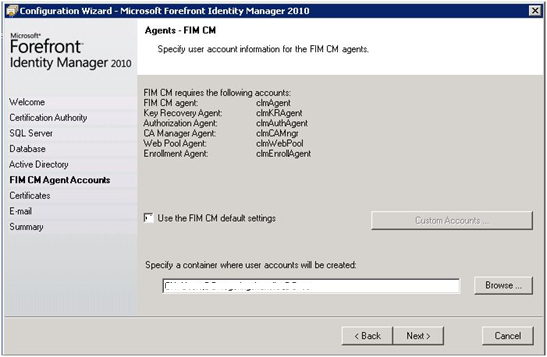
FIM Config Wizard Custom Agent Accounts

FIM Config Wizard Custom Agent Accounts

When specifying agent accounts UNCHECK Use the FIM CM default settings and click Custom Accounts… button.

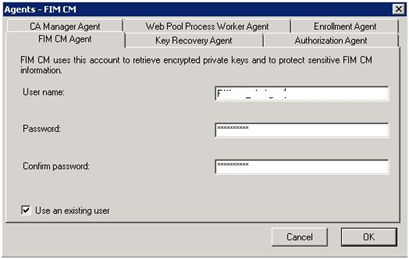
FIM Config Wizard Agents Account Settings

FIM Config Wizard Agents Account Settings

For each agent account configure the username and password and CHECK Use an existing user

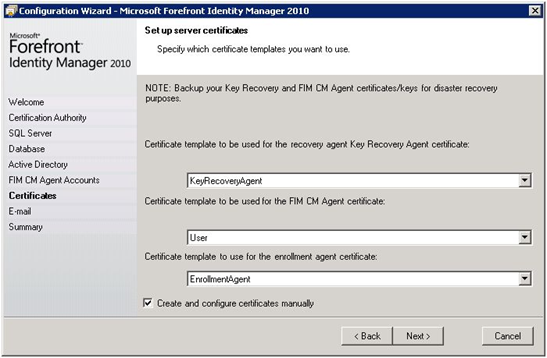
FIM Config Wizard Certificates

FIM Config Wizard Certificates

Since we will re-use the same accounts and certifcates. CHECK Create and configure certificates manually.

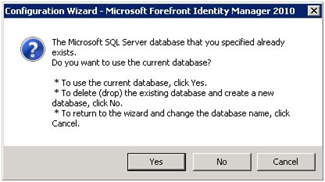
FIM Config Wizard Use Existing DB

FIM Config Wizard Use Existing DB

At the end of the wizard you should be notified that the database already exists. Make sure you answer YES to use the existing DB.

Migrate certificates used by CLM services, to FIM
You need to migrate the certificates used by CLM service accounts to the new FIM CM Server.

The 3 accounts you need to migrate the certificates for are listed below. If you have changed the accounts used in your CLM deployment you need to adjust to that.

  • CLMKRAgent
  • CLMEnrollAgent
  • CLMAgent.

Export the certificates to pfx files from CLM and then log on as each service account and import the certificates into the personal store. Don’t forget the private keys during export/import.

Migrate configuration from CLM to FIM
There are multiple configurations you need to migrate.

First you have the SCP (Service Connection Point) created by the configuration wizard. Check the permissions you have on the old SCP and configure the new SCP with the same settings.

Then you have the config-files. One approach might be to copy all config files from the old CLM to FIM, but I have in my cases migrated the settings in the files instead, since there is no support statement from Microsoft to copy it. This means taking the time to compare the files and copy the changes. In a simple setup the only config file you need to look at is the web.config. In my customer cases I have found that the following keys of the web.config file might have changes.

  • Clm.MaxRecords
  • Clm.Report.MaxRecords
  • Clm.ValidSigningCertificates.Hashes
  • Clm.EnrollAgent.Certificate.Hash
  • Clm.SmartCard.ExchangeCertificate.Hash
  • Clm.RequestSecurity.Flags
  • Clm.RequestSecurity.Groups

Since we are re-using the accounts and the database we do not need to make any changes to certificate templates, profile templates or management policies.

Upgrade the CA modules to FIM version
Before we can start using FIM CM we need to upgrade the CA module on the issuing CA used by CLM. Depending on the OS used by the CA you might need to add .NET Framework 3.5 SP1 before installing the FIM CM CA module.

During the upgrade, the CA module will “loose” it’s settings, so before you run the setup make sure you know the settings you would like to use for database connection string and signing certificate.

Configure CA modules

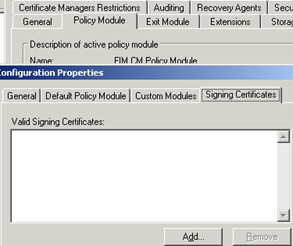
FIM CA Module Signing Certificate

FIM CA Module Signing Certificate

Two setting are required to be added for the FIM CM CA module before you can use it. First it is the database connection string in the Exit Module and then it is the signing certificate in the Policy Module.

Hopefully this article has made it a little bit easier for you to understand the steps involved in migrating from CLM to FIM CM. If you have anything to add to this guide please comment.

3 Comments